Screenshots

The TidyPlan panel, and the calendar and list it adds to your design.

Click an image to see it larger.

The calendar it creates

Generate calendar adds a title, a table and a short list below it. The table grows or shrinks to fill the page.
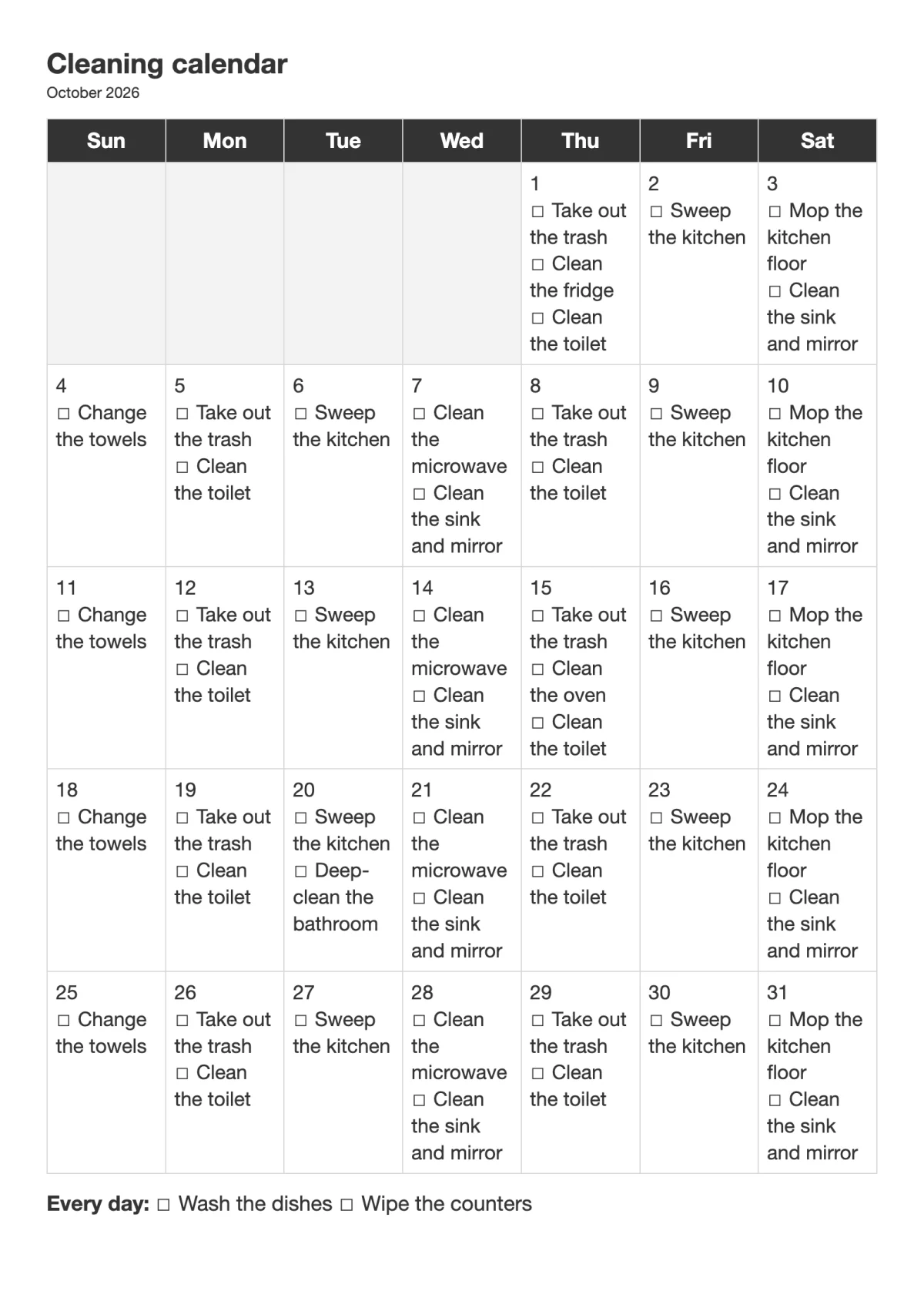
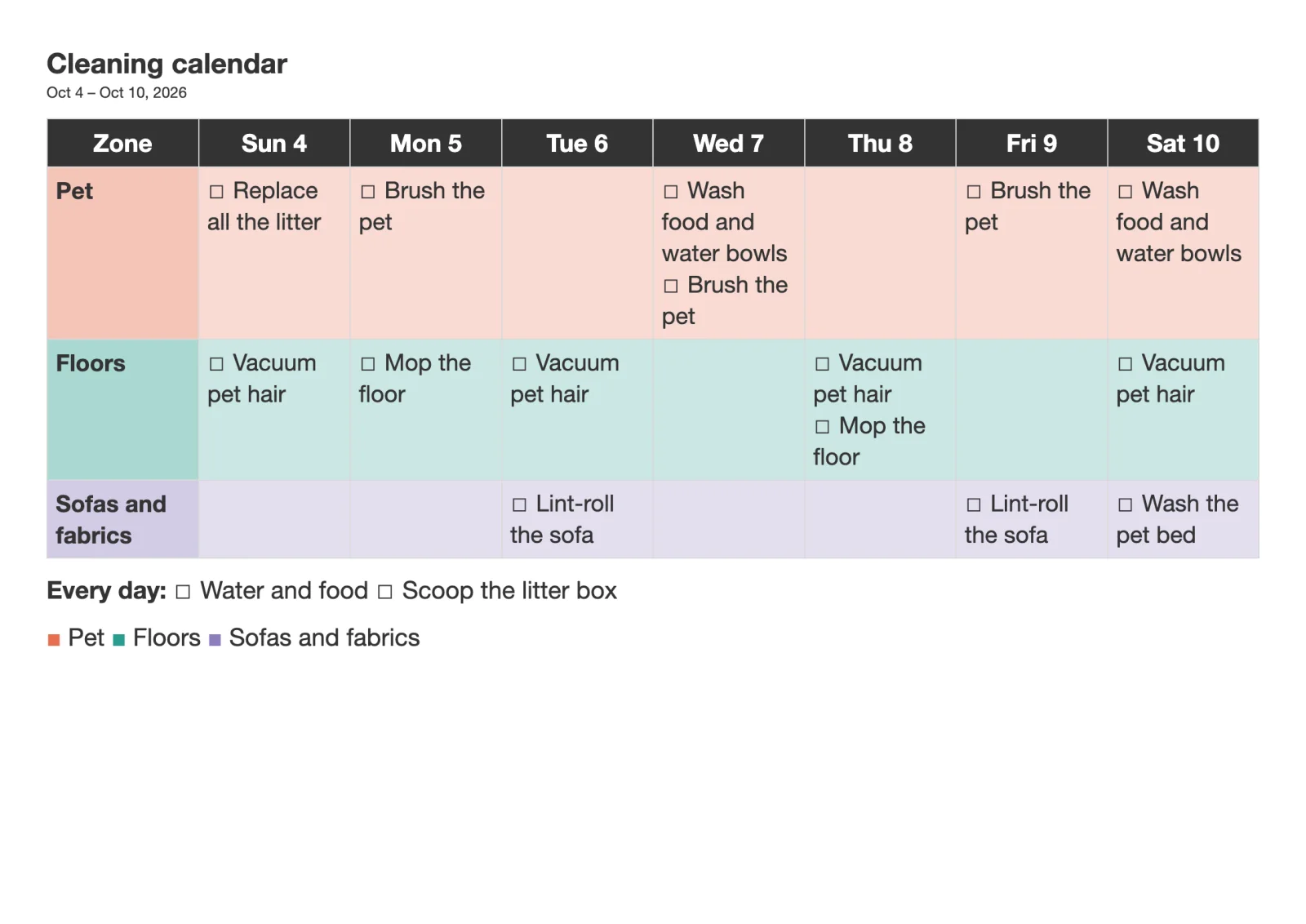
A month: Small apartment template on an A4 page. Daily tasks are listed once below the table.
A month Small apartment template on an A4 page. Daily tasks are listed once below the table.
A week: Pets template on a landscape page, with one colored row per zone and a legend.
A week Pets template on a landscape page, with one colored row per zone and a legend.

The list it creates

Generate list adds the list as one block you can move and resize. It fits the page, and a very long list is split across pages.
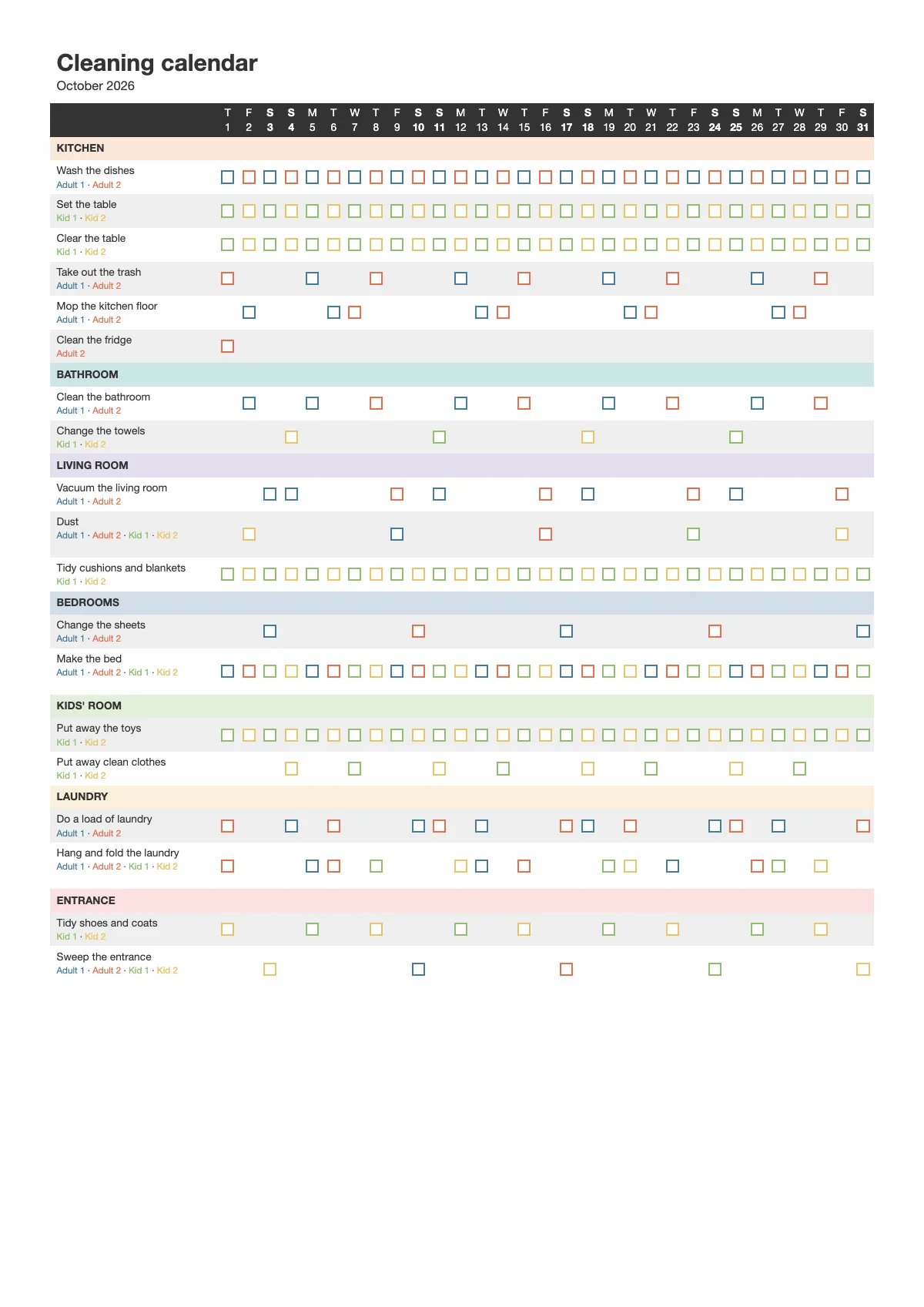
A month by zone: Family with kids template on an A4 page. Each box takes the color of the person doing it that day.
A month by zone Family with kids template on an A4 page. Each box takes the color of the person doing it that day.
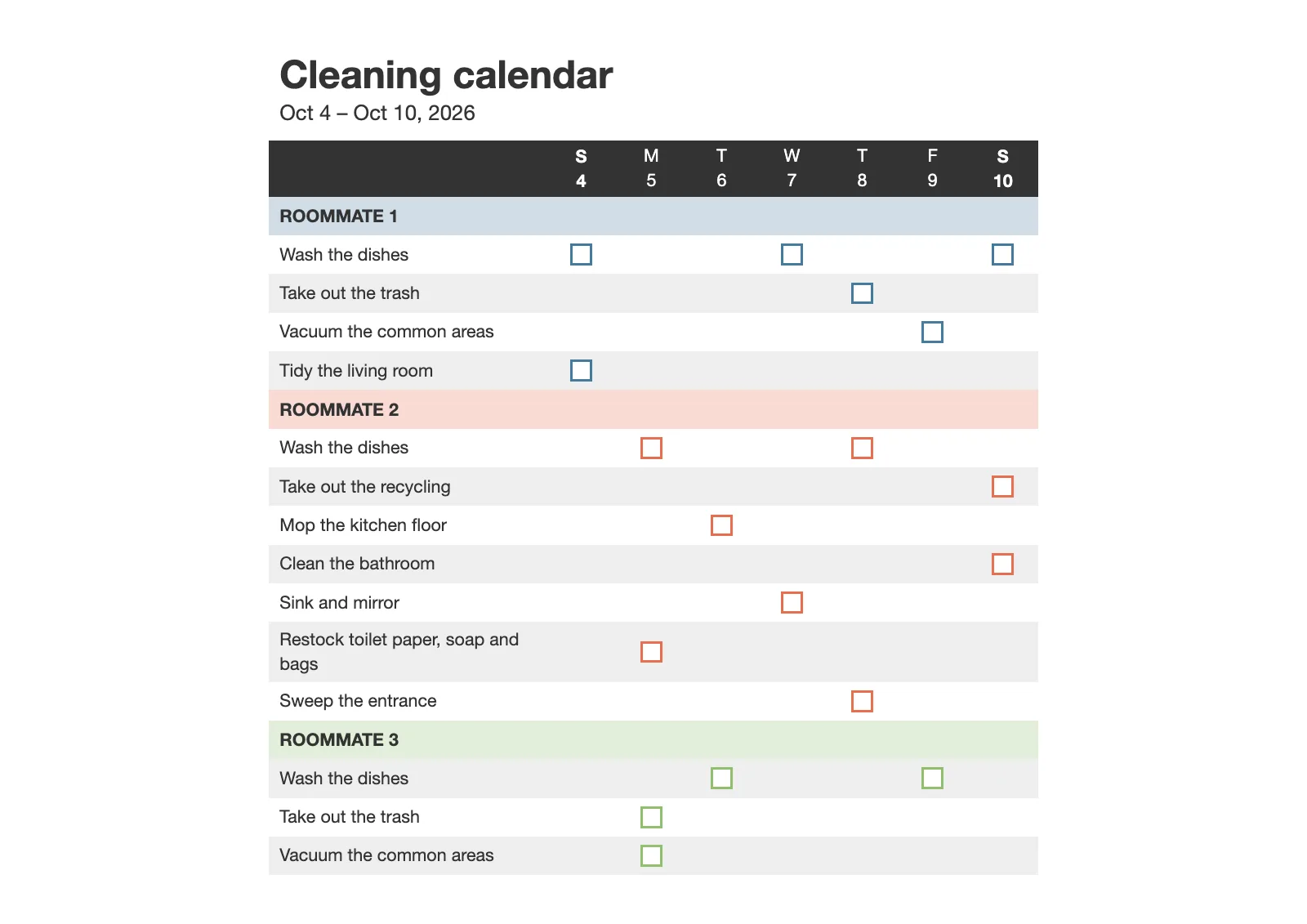
A week by person: Shared apartment template on a landscape page, one section per roommate.
A week by person Shared apartment template on a landscape page, one section per roommate.

These images are drawn from exactly what TidyPlan adds to the page. In Canva the text uses Canva's fonts, and you can restyle everything.

The panel

It opens next to your design in the Canva editor.
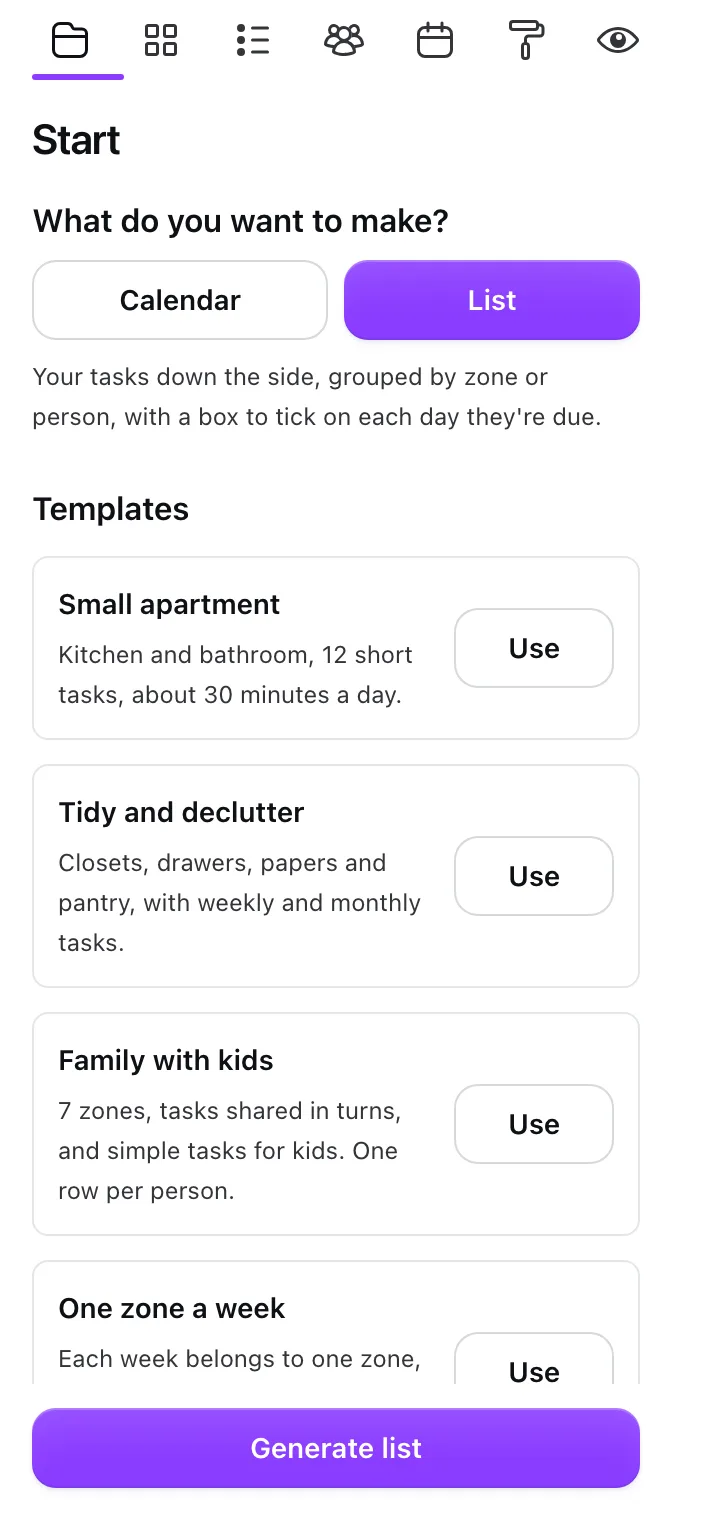
The panel: Start. Choose Calendar or List, then pick a template or start from scratch.
Start Choose Calendar or List, then pick a template or start from scratch.
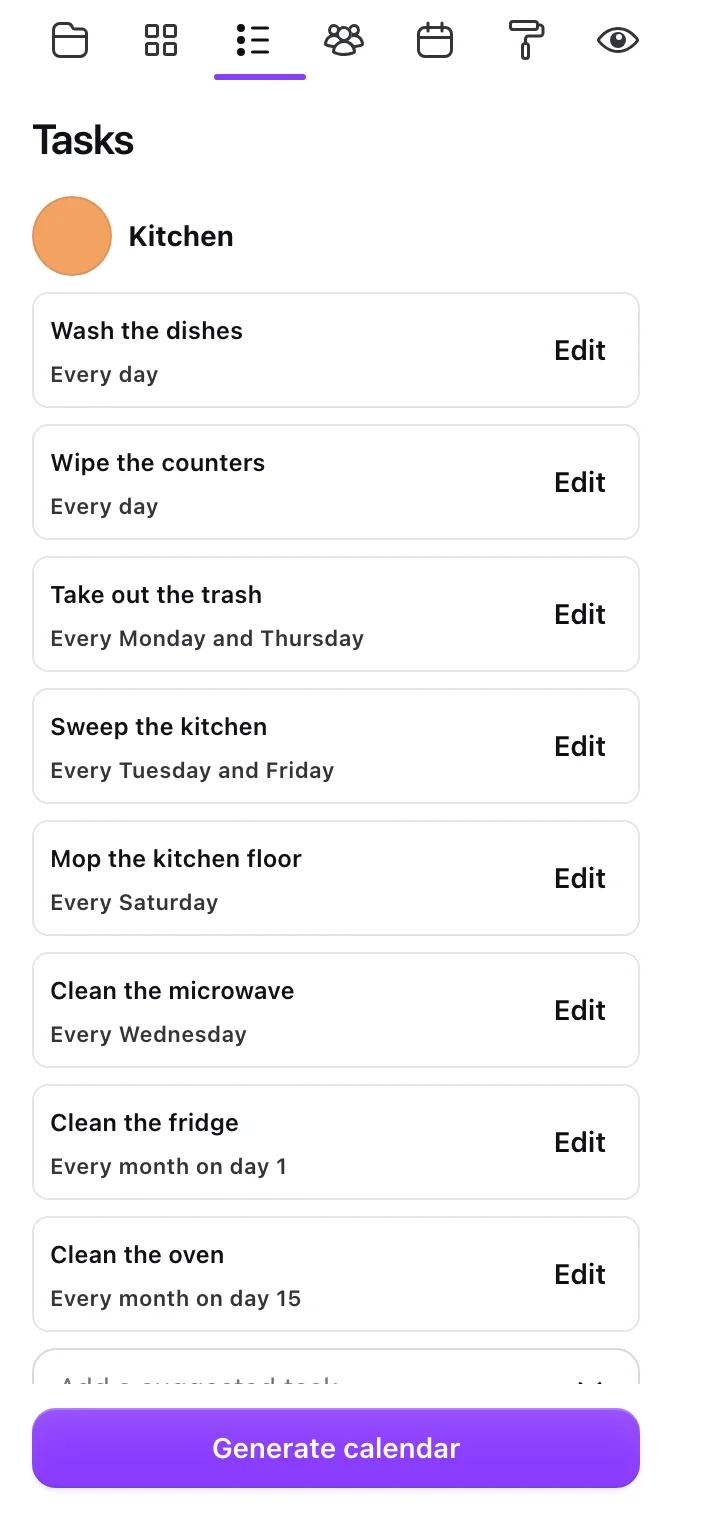
The panel: Tasks. Every task shows how often it repeats.
Tasks Every task shows how often it repeats.
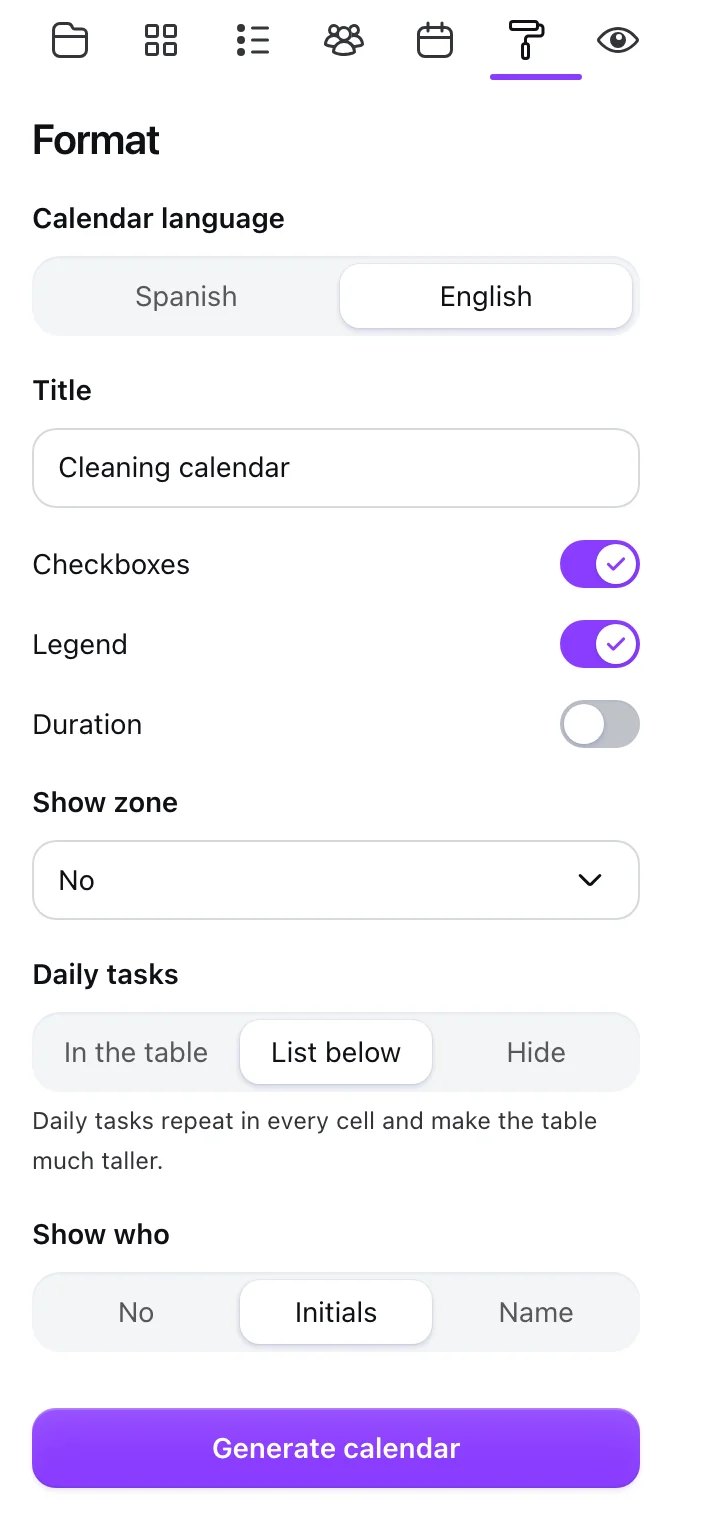
The panel: Format. Choose the language, rows, colors and where daily tasks go.
Format Choose the language, rows, colors and where daily tasks go.
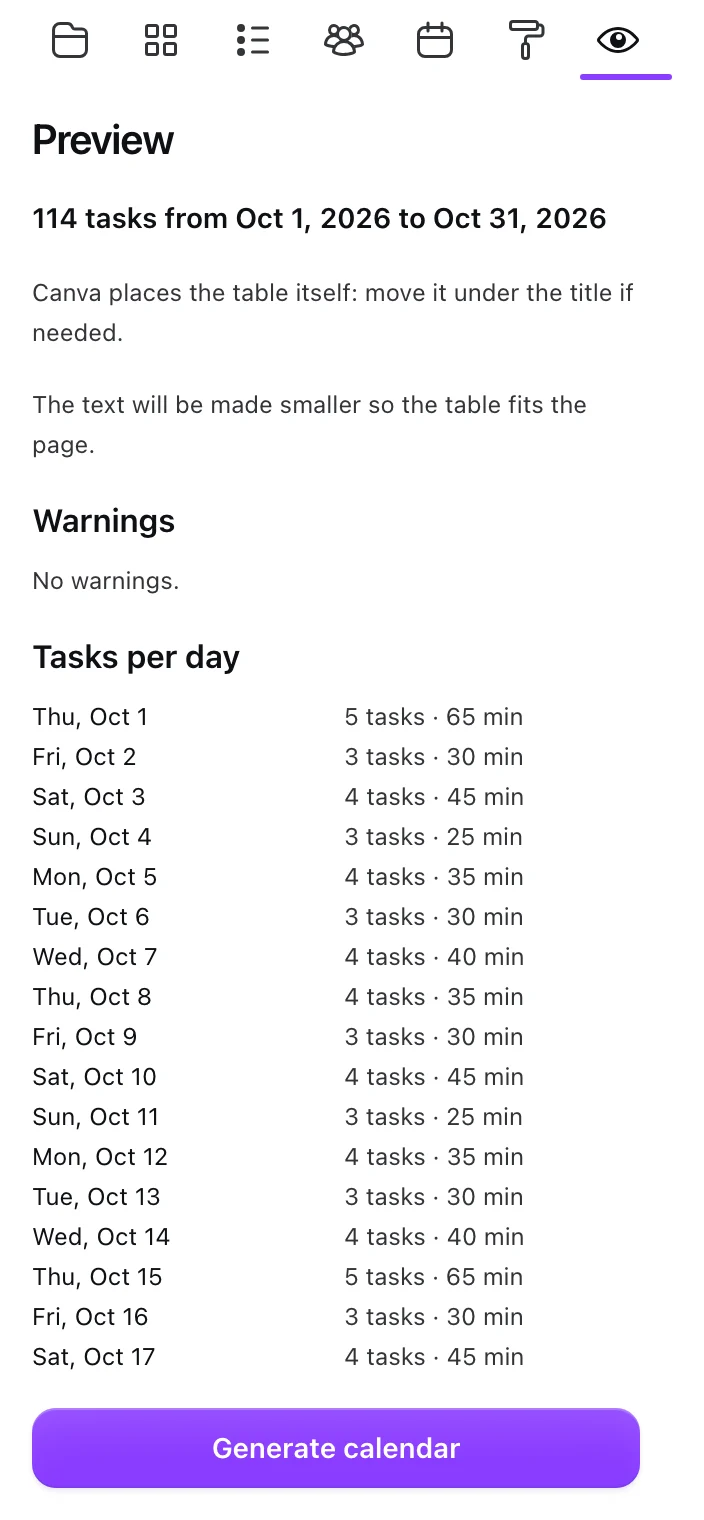
The panel: Preview. Check the tasks per day before you generate.
Preview Check the tasks per day before you generate.

Find TidyPlan in Canva

In the editor, open Apps and search for TidyPlan. It's free.

Get TidyPlan in Canva